
A vision board on your Lock Screen gets seen more than any board on a wall: every time you check the time, read a message or reach for your phone in the morning. That's a lot of tiny reminders for a goal, with zero extra effort.
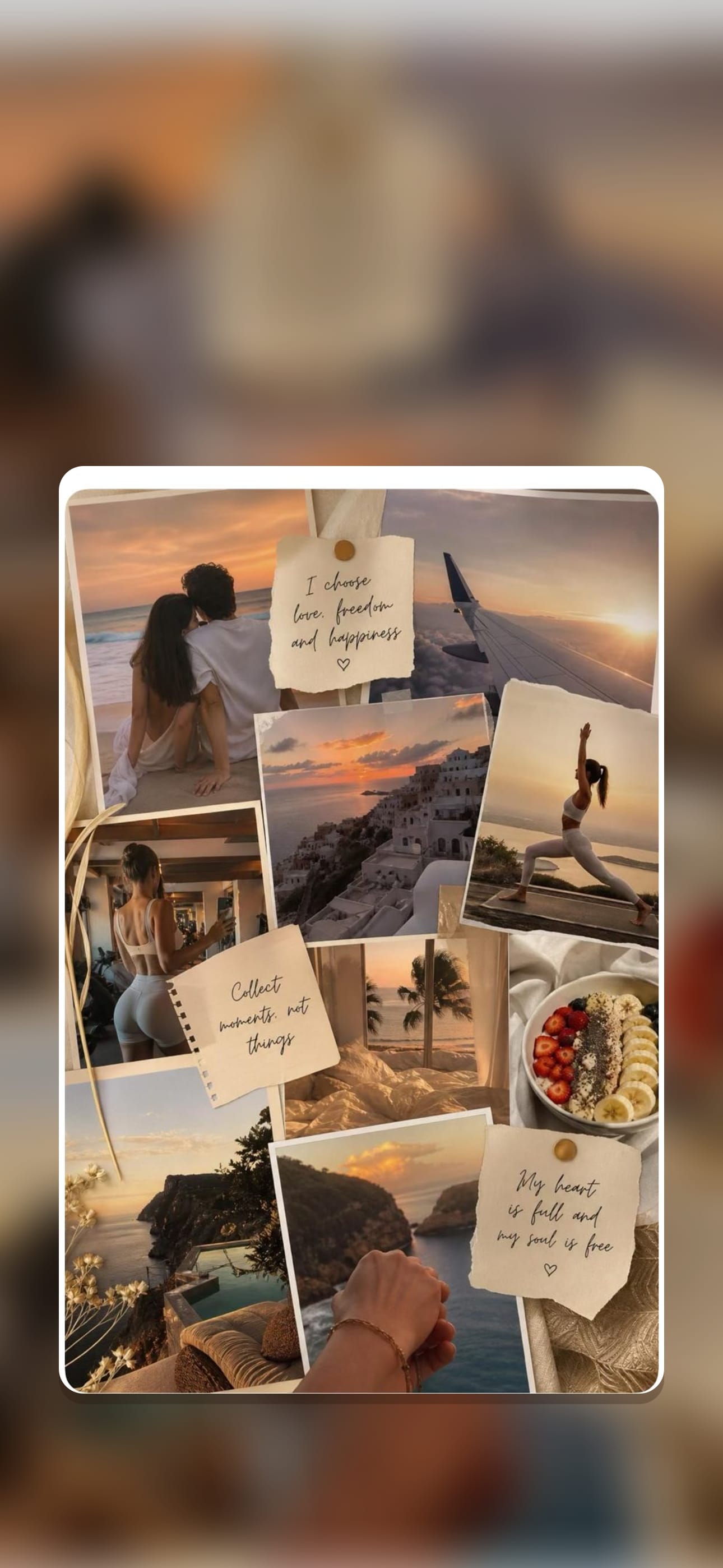
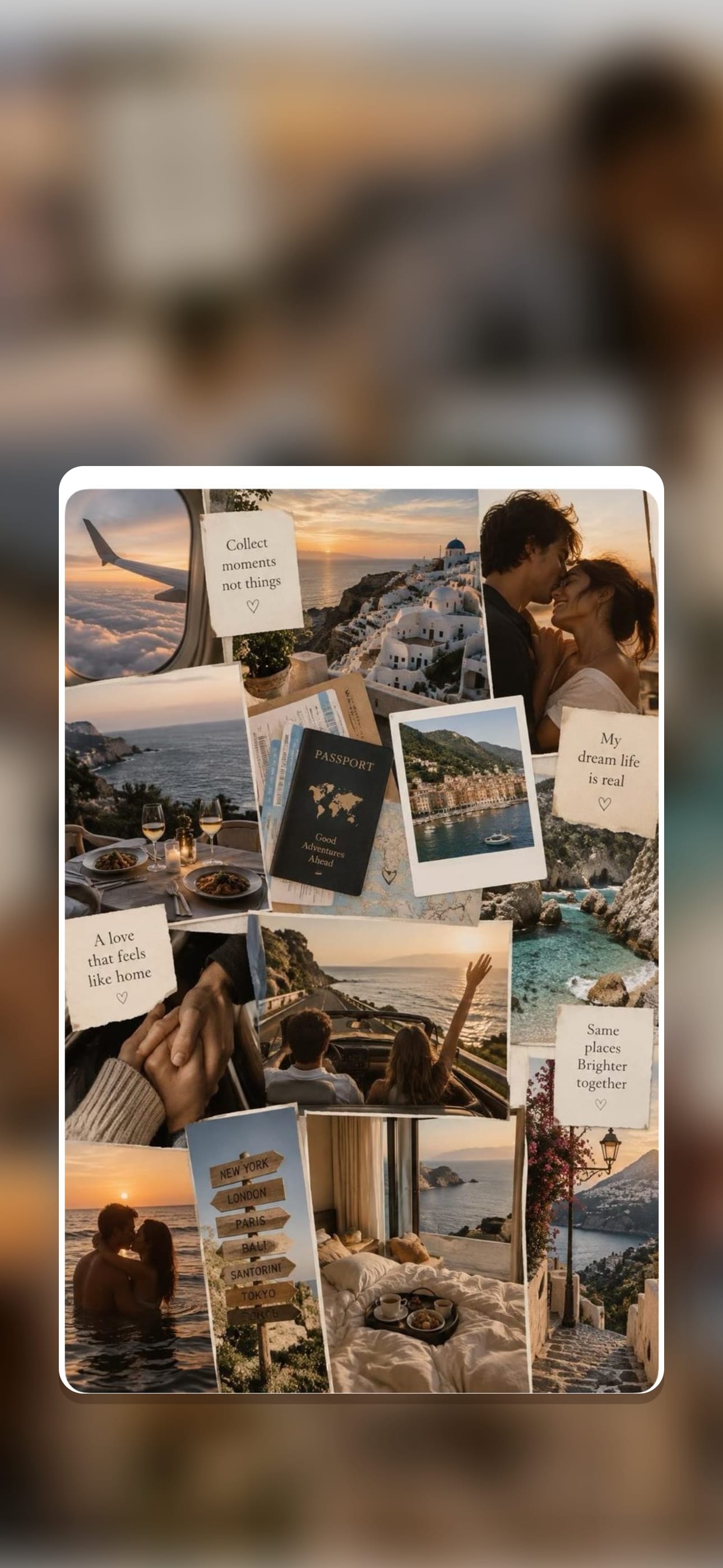
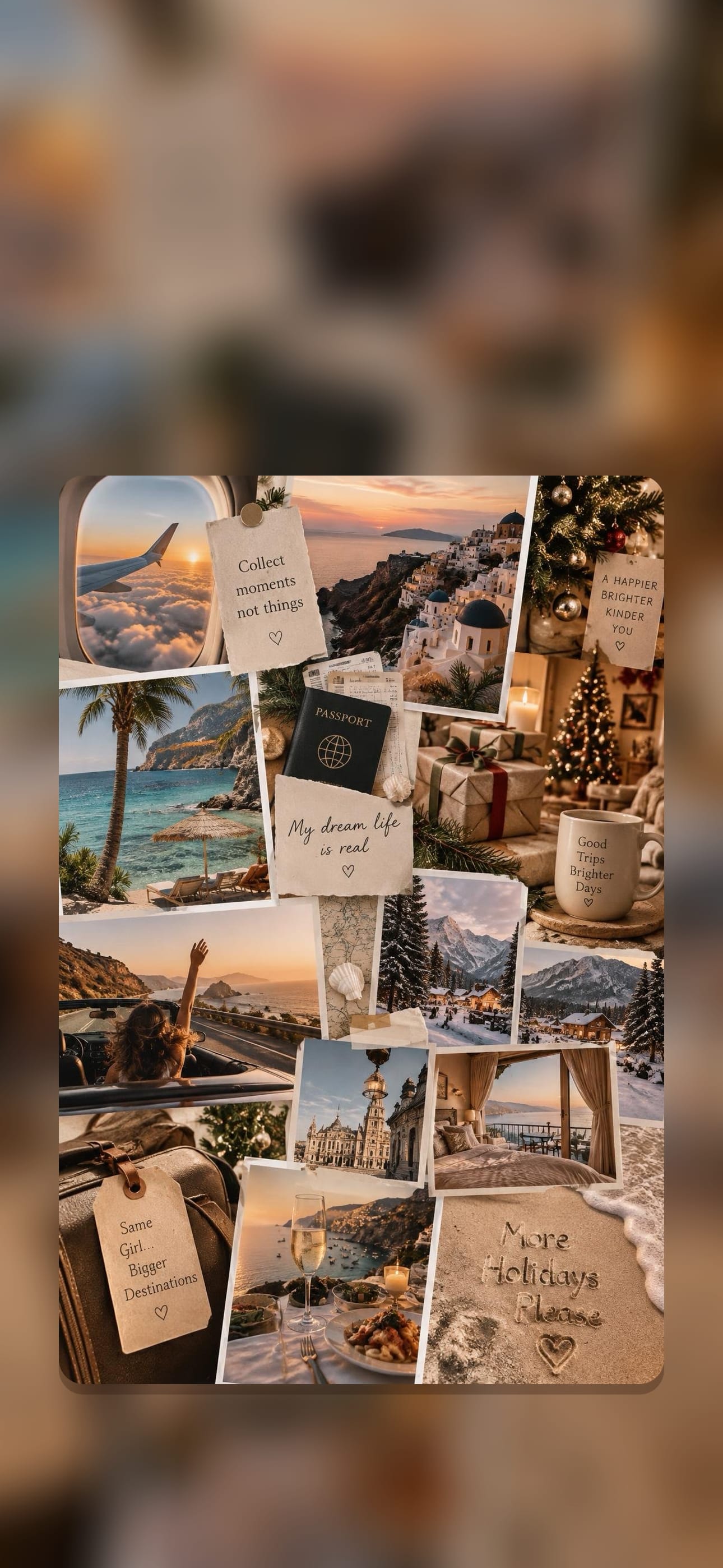
Below are three free vision board wallpapers for iPhone. Our team made all three in Dreamer with Magic Board, which turns a few themes into an aesthetic vision board in one tap: collages of scenes with short notes written right into them. You won't find borrowed stock pictures of strangers here. Each file is 1290 × 2796 pixels, the tall 19.5:9 shape of Face ID iPhones, with the board set below the Lock Screen clock over a soft, blurred copy of itself, so the time never covers it.
To download one: touch and hold a wallpaper, then tap Save to Photos. Or tap a "full size" link to open the original file first. They're free for personal use on your own phone; please don't resell or re-upload them.
Free wallpapers from real Dreamer boards
These are boards our team made in Dreamer: one about love, one about travel and one about holidays, notes and all.


Full size: Love · Travel · Holiday
Rather see your own goals every time you pick up the phone? Build a board in Dreamer with your photos and captions, or let Magic Board make one on the premium plan, then save it to Photos in two taps and set it as your wallpaper there. The download is free, and so are your first two boards.
How to set a vision board as your iPhone wallpaper
Setting one takes under a minute, and it all happens in the Photos app.
- Save the wallpaper: touch and hold it, then tap Save to Photos.
- Open Photos and tap the image.
- Tap the Share button, scroll down and tap Use as Wallpaper.
- Pinch and drag to frame it. Swipe to try the photo styles if you like.
- Tap Add (or Done on some iOS versions).
- Choose Set as Wallpaper Pair to use it on both screens, or Customize Home Screen to keep your apps on a plainer background.

You can also start from Settings → Wallpaper → Add New Wallpaper → Photos. If the clock covers an important detail, move the image down a little. Our designs already sit below the clock, so they usually need no adjustment.
Make your own vision board wallpaper in Dreamer
A downloaded wallpaper is a good start. One with your own goals, your own photos and your own words works harder, and making it in Dreamer takes about ten minutes:
- Open Dreamer and tap Create Vision Board.
- Pick a portrait layout. One photo with a caption makes the cleanest wallpaper; four photos work if each one is simple.
- Add your photos, or search Dreamer's built-in library, and write a short caption.
- Tap Share, then Save Image. The board is now in Photos, ready for the six steps above.
Short on photos? Tap Generate with AI to open Magic Board. It blends up to three of eight themes into one finished vision board collage with short phrases on it, and boards like the three above start there. Magic Board comes with Dreamer's premium plan.
Two honest notes. Dreamer doesn't change your wallpaper for you, and it has no Lock Screen widget; the Photos route above is how you get the board onto the Lock Screen. For more on building boards, read how to make a vision board on iPhone, and for photo inspiration browse our 43 real vision board examples.
Lock Screen wallpaper or Home Screen widget?
Use both, because they do different jobs. The wallpaper is a glance: you see it dozens of times a day without trying. Dreamer's large Vision Board widget lives on the Home Screen, shows the board you choose and opens it with a tap, which makes it the better place for the board you care about most right now. A smaller Affirmation widget, in two sizes, keeps your words in view too.
A good split: a Magic Board or a one-photo board as the Lock Screen wallpaper for the mood, and your detailed photo board as the Home Screen widget for the specifics. Dreaming about the whole year ahead? Our 2027 vision board guide shows how to build one.
Your goals deserve the screen you look at most. Download Dreamer, make one board tonight, and wake up to it tomorrow.
Frequently asked questions
Are these vision board wallpapers free?
Yes, all three are free for personal use on your own phone. Please don't sell them or upload them to other wallpaper sites.
What size is an iPhone vision board wallpaper?
These files are 1290 × 2796 pixels, a tall 19.5:9 format that fills the Lock Screen on Face ID iPhones. Photos lets you pinch and drag to fine-tune the framing on your model.
Can I put a vision board on my iPhone Lock Screen?
Yes. Save the image to Photos, open it, tap Share and choose Use as Wallpaper. Any board you make in Dreamer can go there too, after Share → Save Image.
How do I make an aesthetic vision board wallpaper?
Choose one aesthetic before choosing photos: clean girl, old money, cottagecore or dark academia. Then stick to its palette, keep one subject per photo and leave the top of the image calm for the clock.
Can I make a 2027 vision board wallpaper with my own photos?
Yes. In Dreamer, create a board with a one-photo or four-photo layout, add your pictures and a caption like "2027: Steady", then tap Share → Save Image and set it from Photos.
Does Dreamer have a Lock Screen widget?
No. Dreamer's widgets are for the Home Screen: a large board widget and an Affirmation widget in small and medium sizes. For the Lock Screen, save your board as an image and use it as your wallpaper.